
How to put GameHubbie on your Android home screen
GameHubbie plays in your browser, which means there is nothing to download and nothing to update. You can still keep it on your phone's home screen, so it sits with your other apps and opens with one tap.
Put it on your home screen
The whole thing is three taps, all of them in Chrome:
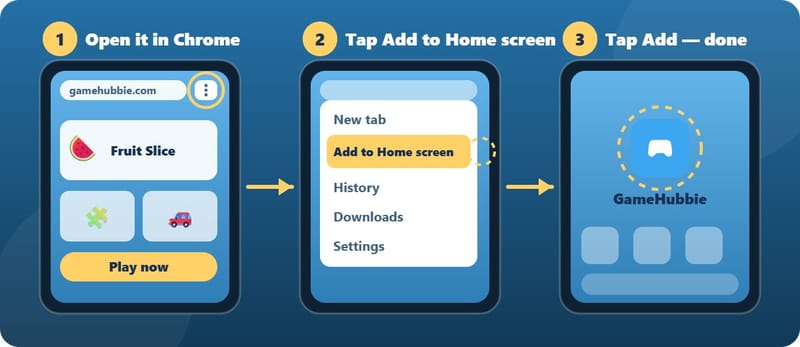
- Open Chrome on your Android phone and go to gamehubbie.com.
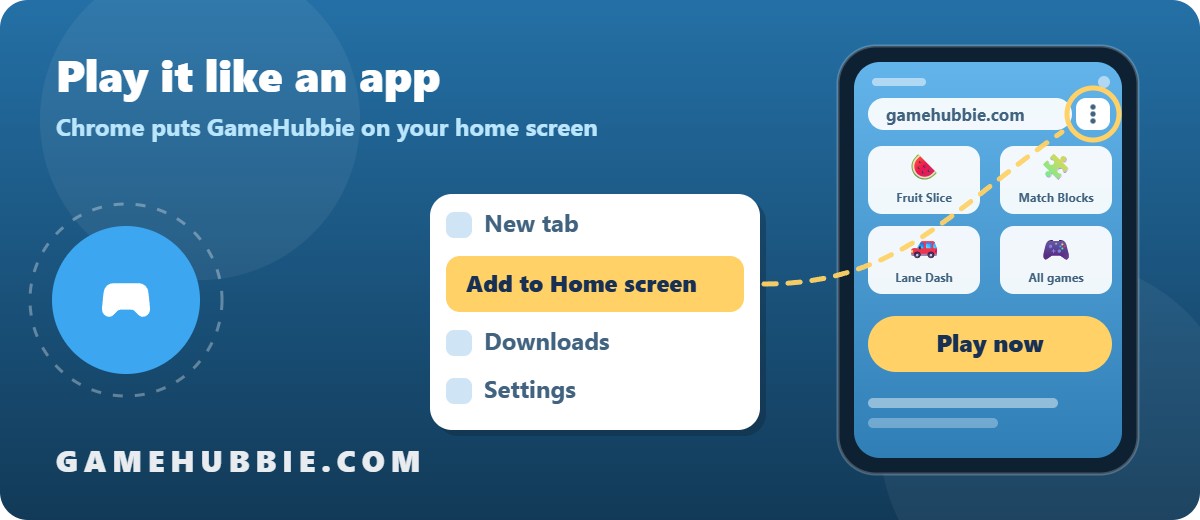
- Tap the three dots in the top right corner of Chrome.
- Tap Add to Home screen. Depending on your phone, Chrome may call it Install app or Install and create shortcut — it is the same thing.
- Keep the name GameHubbie (or type your own) and tap Add.
An icon lands with the rest of your apps. Tap it and the games are ready to play, with your gamer tag, your scores and the leaderboard exactly as they are on the website.
If you have the app file (APK)
Android can also run GameHubbie as a proper app, installed from a single file called gamehubbie.apk. It is the same games you play on the website, so you do not need it — but if someone has given you the file, here is how it goes on your phone:
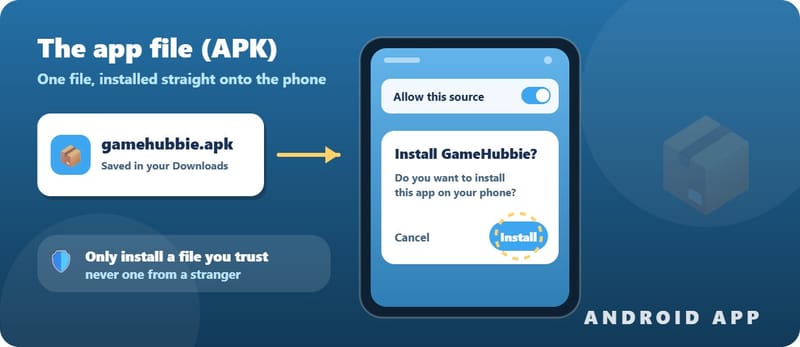
- Open Files (or your phone's file manager) and look in Downloads. While the file is arriving, Android also shows it in your notifications.
- Tap the file. The first time, Android asks whether to allow installs from that app: choose Allow from this source and confirm with your PIN or fingerprint.
- Tap Install, then Open.
Android is telling you something useful when it warns about apps from outside the Play Store: only install a file that came from someone you trust. Never install one from a link in a message you were not expecting.
To update the app later, install the newer file over the top. Your gamer tag and your scores live in your account, so they come with you.
On an iPhone
Safari does the same job: open gamehubbie.com, tap the Share button along the bottom, then tap Add to Home Screen.
If something does not look right
- No Add to Home screen in the menu? Scroll down inside the menu — on smaller phones the entry sits below the first screenful.
- An old copy of Chrome? Update Chrome from the Play Store, then try again.
- The icon opens a normal browser tab? That is fine, and it is what some phones do. The games behave exactly the same way.
- Want it gone? Press and hold the icon, then pick Remove for a shortcut or Uninstall for the app. Nothing is deleted from your account.
- Already signed in? The icon uses the same account, so your runs still count towards your place on the leaderboard.